
Admin panel
set up everything.
A guide to each screen, in the order of the sidebar, with what to set on day one. Screenshots come from the demo workspace, which starts empty like a fresh install.
01Roles and sessions
| Role | Can do |
|---|---|
superAdmin | Everything, including inviting and removing admins. |
editor | Edit configuration, send notifications, grant or revoke PRO. Cannot manage admins. |
viewer | Read only. The panel shows a READ ONLY badge. |
Roles are enforced on the server too (rules and functions), not only in the interface. Sessions end after 30 minutes without activity and after 12 hours in any case.
The screenshots on this page come from the hosted demo workspace. Your own build shows no demo workspace and has no default login: demo mode exists only in builds made with a demo build switch, and those need credentials you choose yourself (Deployment).
Day-one order
- Security: authenticator on.
- Branding: name, colour, links.
- Monetization: fee wallets, fee, PRO price.
- Chains and Tokens.
- System Config: support email, terms, privacy.
- Publish Config: snapshot, then publish.
02Overview, Revenue, Users
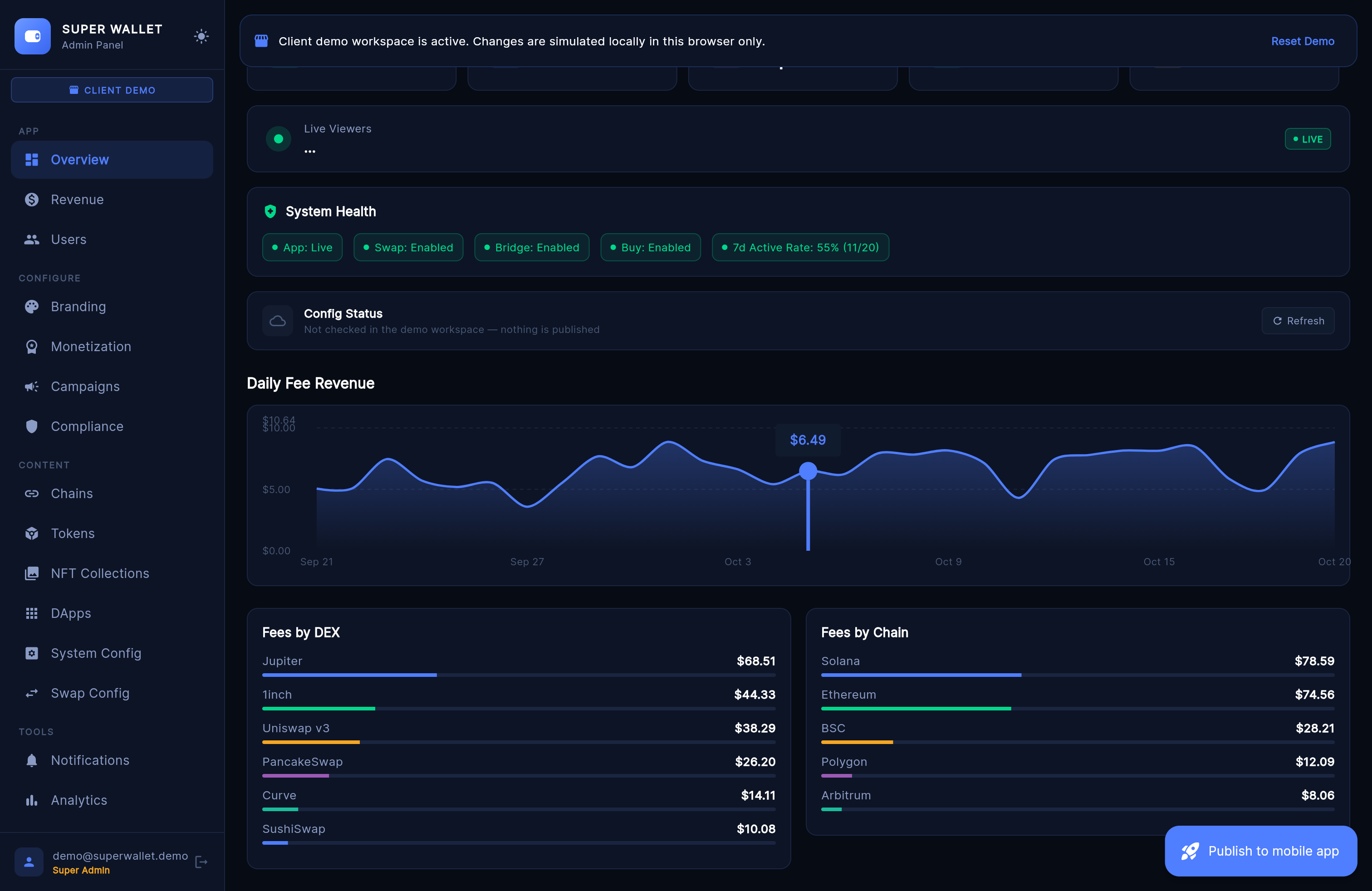
Overview — the last 30 days at a glance: users, PRO subscribers, fee revenue, swaps, app status, fee charts by DEX and chain, system health, and Config Status, which checks that your config.json answers.
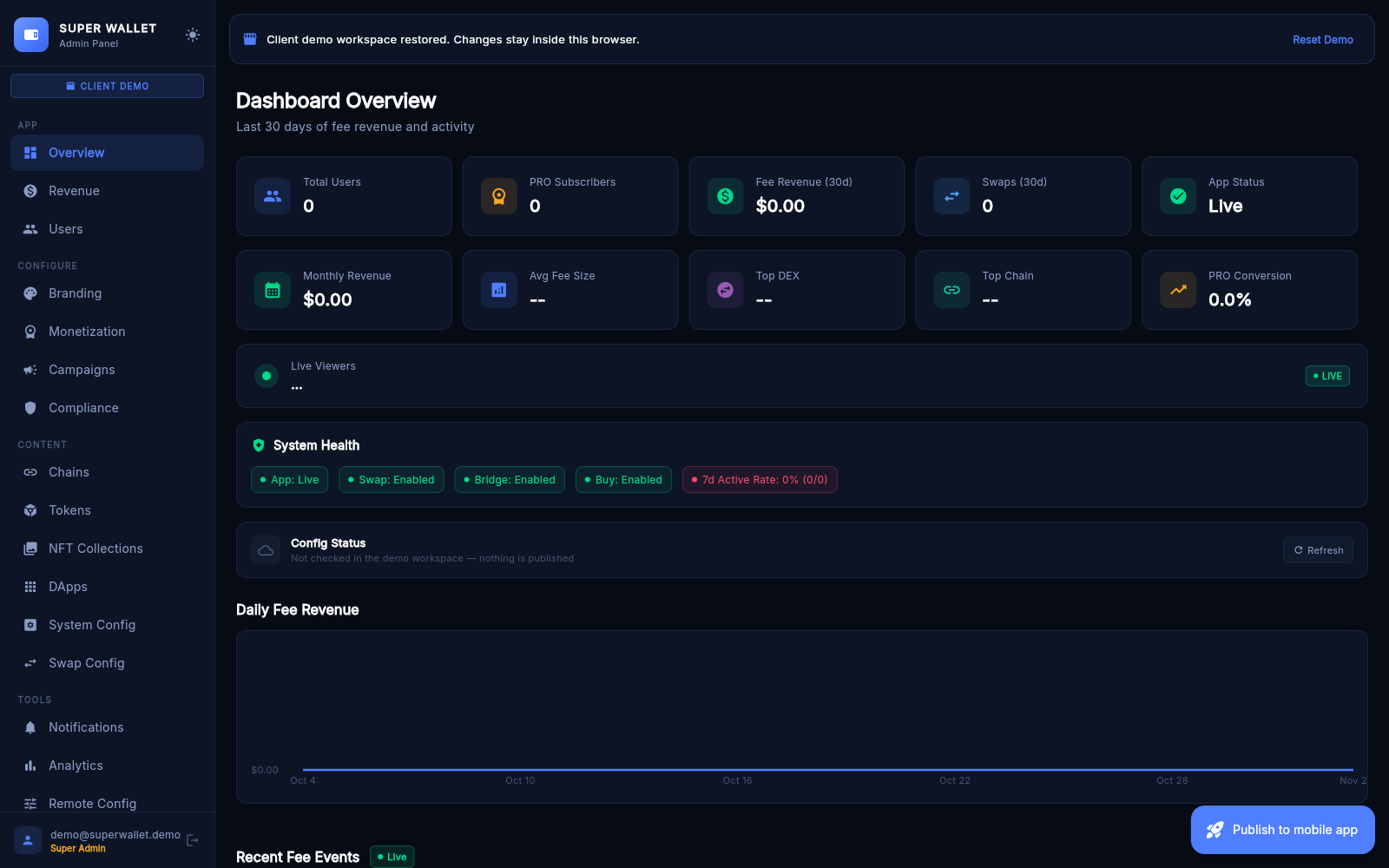
There is no separate status page. The Overview's System Health row shows whether the app is live and which features are switched on, and Config Status shows whether your config.json is reachable and how fast. Press Refresh after a publish.
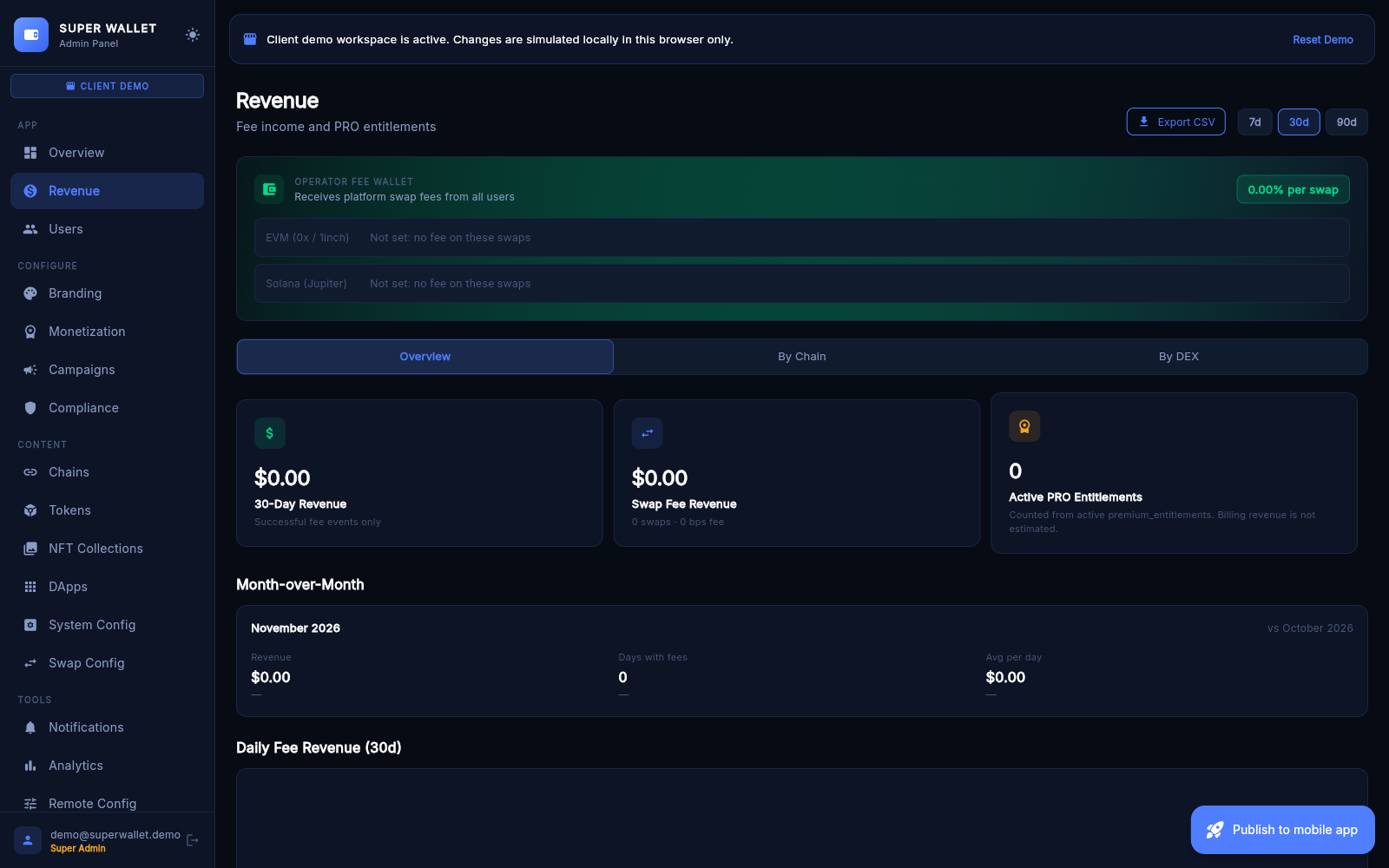
Revenue — swap-fee income from successful fee_events, by chain and by DEX, month over month, with CSV export and the fee-wallet card. Store subscription income is not estimated here; check App Store Connect and Play Console.
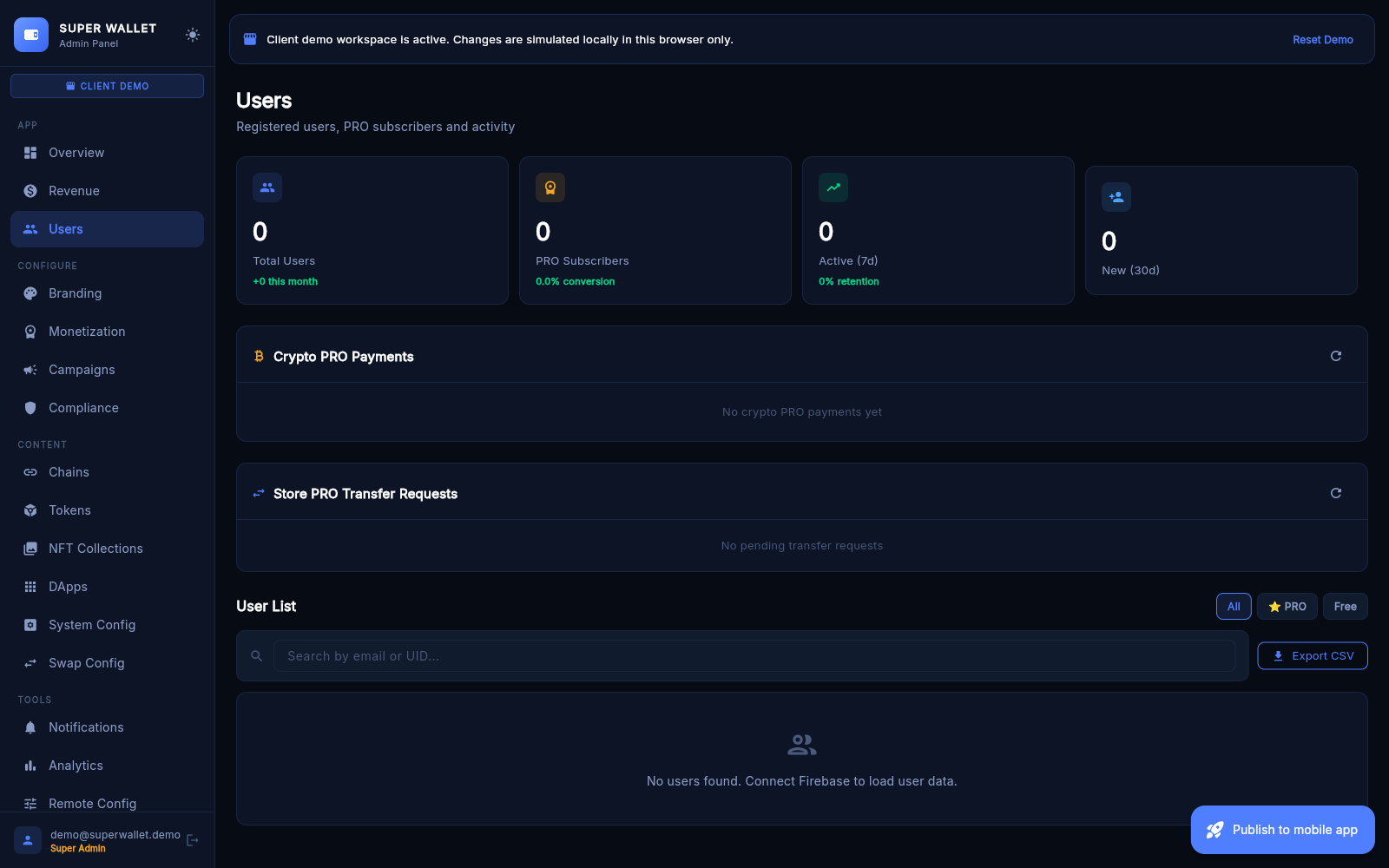
Users — everyone registered, with plan, platform and dates. Per user: Grant PRO, Revoke PRO, Start Free Trial (superAdmin; uses the Trial Days below and fails when No trial is set), copy UID. Revoke PRO is final until you Grant PRO again: a revoked account cannot get PRO back with a store purchase, a free trial or a crypto payment. (A record is treated as revoked when it carries admin_revoked: true, or status: "revoked" together with revoked_by; Grant PRO clears both.)
Below: Crypto PRO Payments: every crypto payment and the outcome the server gave it. Then Store PRO Transfer Requests: restores of a store subscription on a new device; each shows the store evidence, and Approve transfer verifies the purchase with the store again and moves it (how).
PRO is activated by the verifyProCryptoPayment function, not by this list; for a payment it left pending you can Grant PRO by hand, which is logged and leaves the payment record as it is.
03Branding
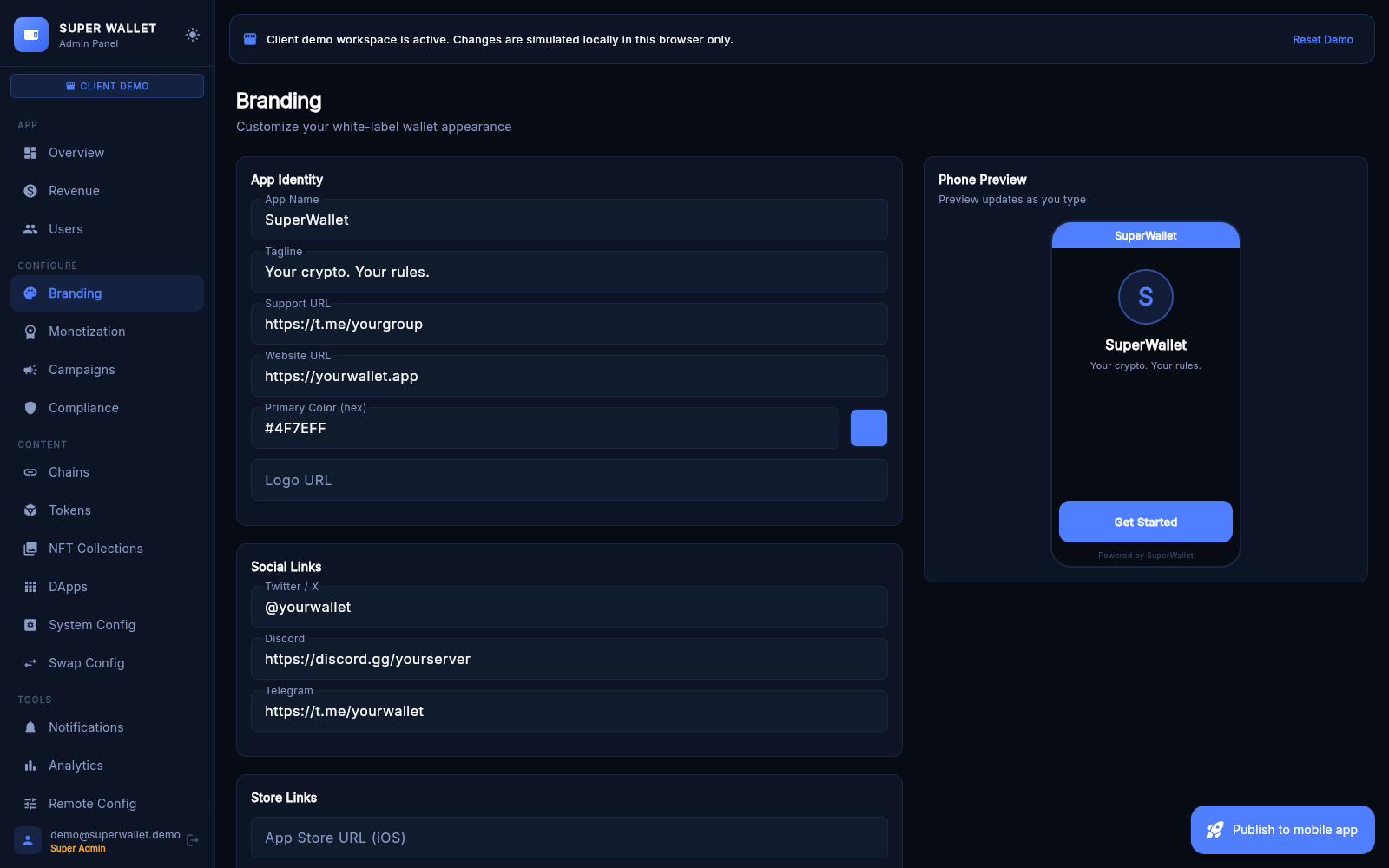
Everything users see of your brand inside the app, with a live phone preview while you type: app name, tagline, primary colour (hex), logo URL, support and website URLs, X / Discord / Telegram links, App Store and Google Play links, About text, swap disclaimer and the Show "Powered by SuperWallet" switch.
Click Save Branding, then publish. The wallet shows the name, tagline, colour, logo, support and website links and the social links. It does not show the About text, swap disclaimer or store links in this version, and the "Powered by" switch only changes the preview (details). The name under the icon, the icon and the splash screen are compiled into the app; see Rebranding.
04Monetization
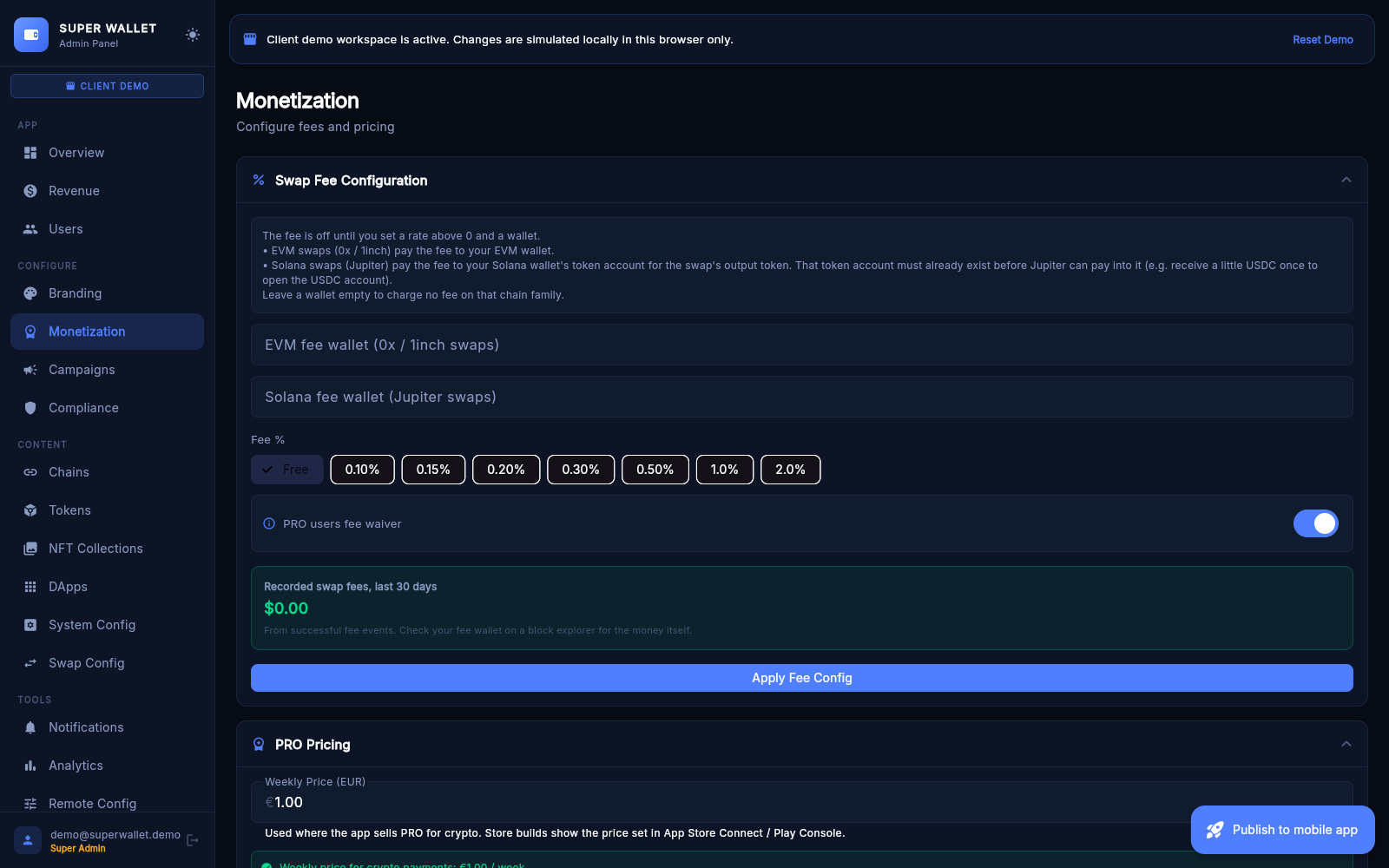
On a fresh install everything here is off: fee Free, both fee wallets empty. Nothing is charged until you fill a wallet, pick a fee and publish.
- Swap Fee Configuration:
- EVM fee wallet: an EVM address (
0x+ 40 hex characters). Receives the fee on 0x and 1inch swaps, on every EVM chain. - Solana fee wallet: a Solana address. Receives the fee on Jupiter swaps, into its token account for the token the user receives. That token account must already exist (how).
- Fee %: a preset: Free, 0.10, 0.15, 0.20, 0.30, 0.50, 1.0 or 2.0 %. 2 % (200 bps) is the maximum; higher values are refused.
- PRO users fee waiver.
- Recorded swap fees, last 30 days: the total of successful fee events. The admin shows measured income only and makes no projection.
- EVM fee wallet: an EVM address (
- PRO Pricing: weekly price in EUR and trial days (No trial, 3, 7, 14, 30). Save Pricing. With No trial (the default) the app shows no trial button and the server refuses trial requests; otherwise the app shows "Try N days free" and the server grants that many days, once per account. A trial never unlocks Portfolio Brain. Crypto payment prices are set separately, per plan, in System Config → Crypto PRO Payment.
- PRO features: one switch; off hides every PRO feature in the app for all users.
- On-Ramp Configuration: Transak on/off, key, Staging or Production, default currency.
The full walkthrough, including where the fee applies, is on Setting up earnings.
05Campaigns
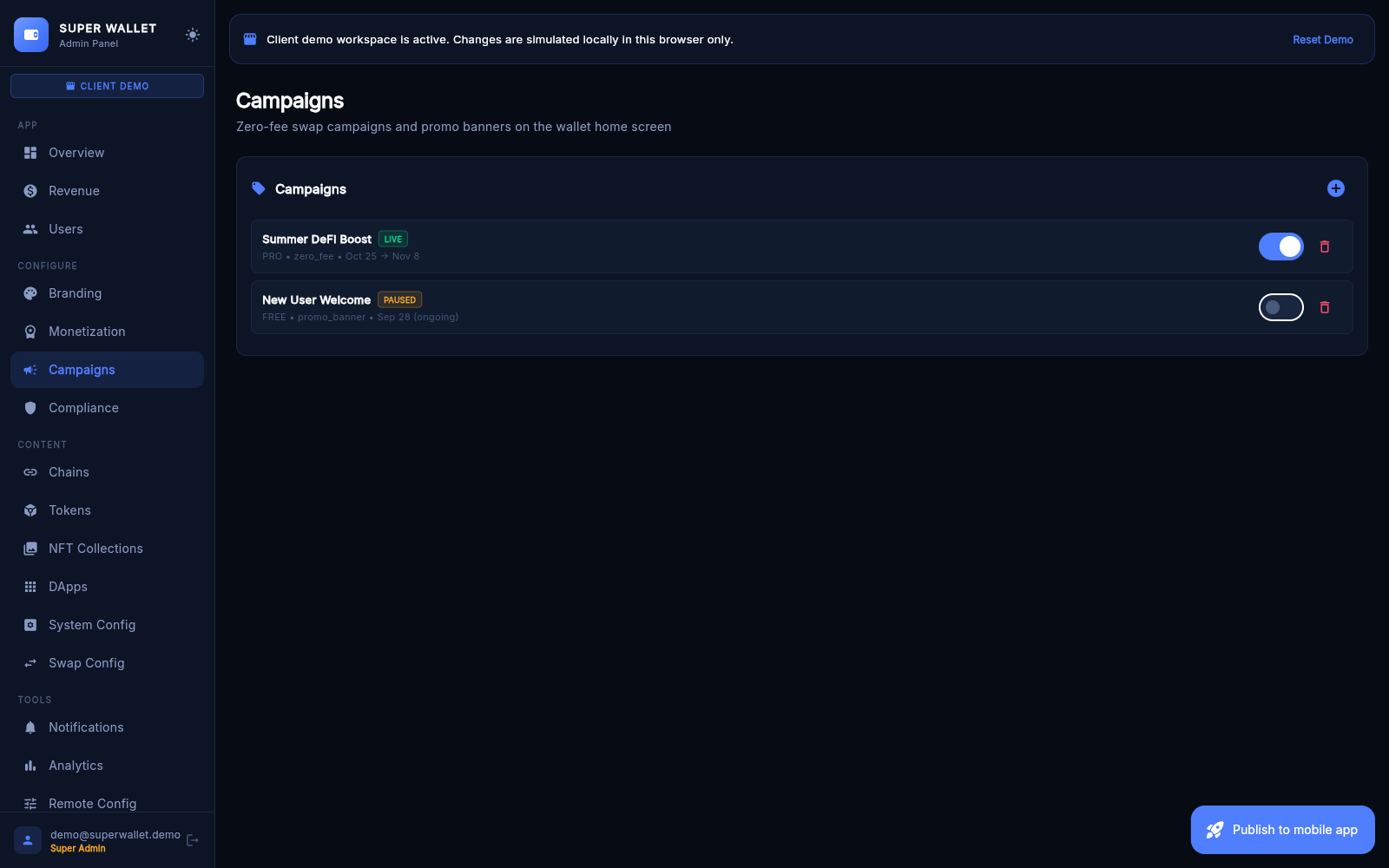
- New Campaign: name, type, audience (All, PRO, Free), start and optional end date. Status shows Scheduled, Live, Paused or Ended.
- Zero Fee: a fee override in bps (0 = free) for matching swaps while the campaign is live.
- Promo Banner: the campaign's name and description appear as a banner on the wallet's home screen while it is live.
The single announcement line at the top of the home screen is set in Remote Config → Announcement Banner.
06Compliance
- AML & KYC: users with 30-day transaction count, largest transaction and a risk level. CSV export.
- Suspicious Txs: transactions over $10,000 in the last 30 days.
- SAR: record a suspicious-activity report for a user; saved to
sar_reportsfor your review.
In this version the Controls sub-tab (blocked addresses, limits, geo restrictions, risk settings) confirms a save but does not store the values, and the app does not enforce them. These tools help you watch activity; they do not make a business compliant. Ask a lawyer which rules apply to you.
07Chains
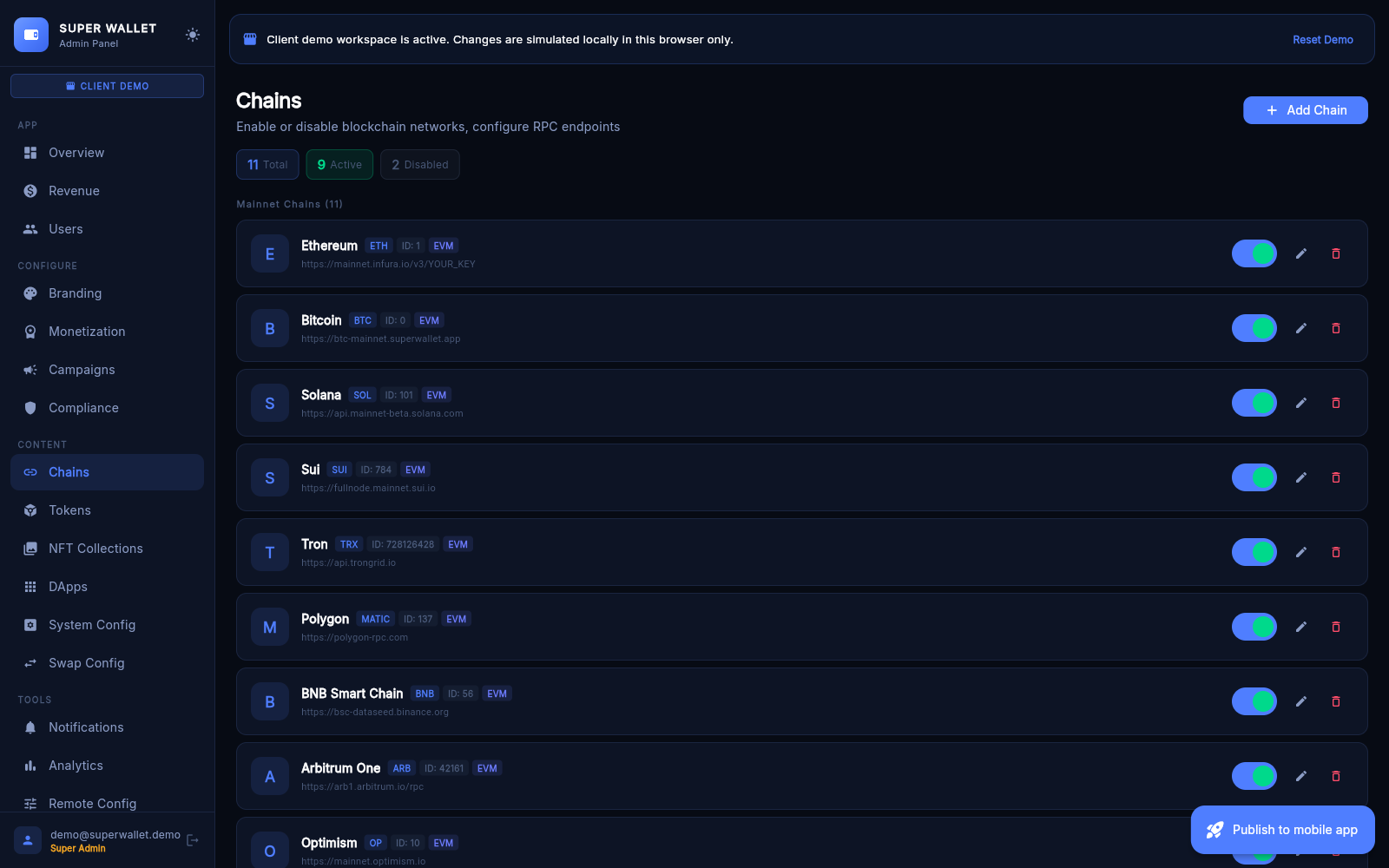
The networks your app offers. Add Chain fields: name, symbol, chain ID (unique — look it up on chainlist.org), icon URL, RPC URL (tested when you save), explorer URL, chain family, EIP-1559 gas, enabled, testnet, and optionally a Uniswap V2-compatible router plus the wrapped native token address.
Ships with 25+ EVM networks plus Bitcoin, Solana, Tron and Sui. 0x and 1inch quote only on chains they support; on other EVM chains the app swaps through the router you enter here, or one it finds.
08Tokens, NFT Collections, DApps
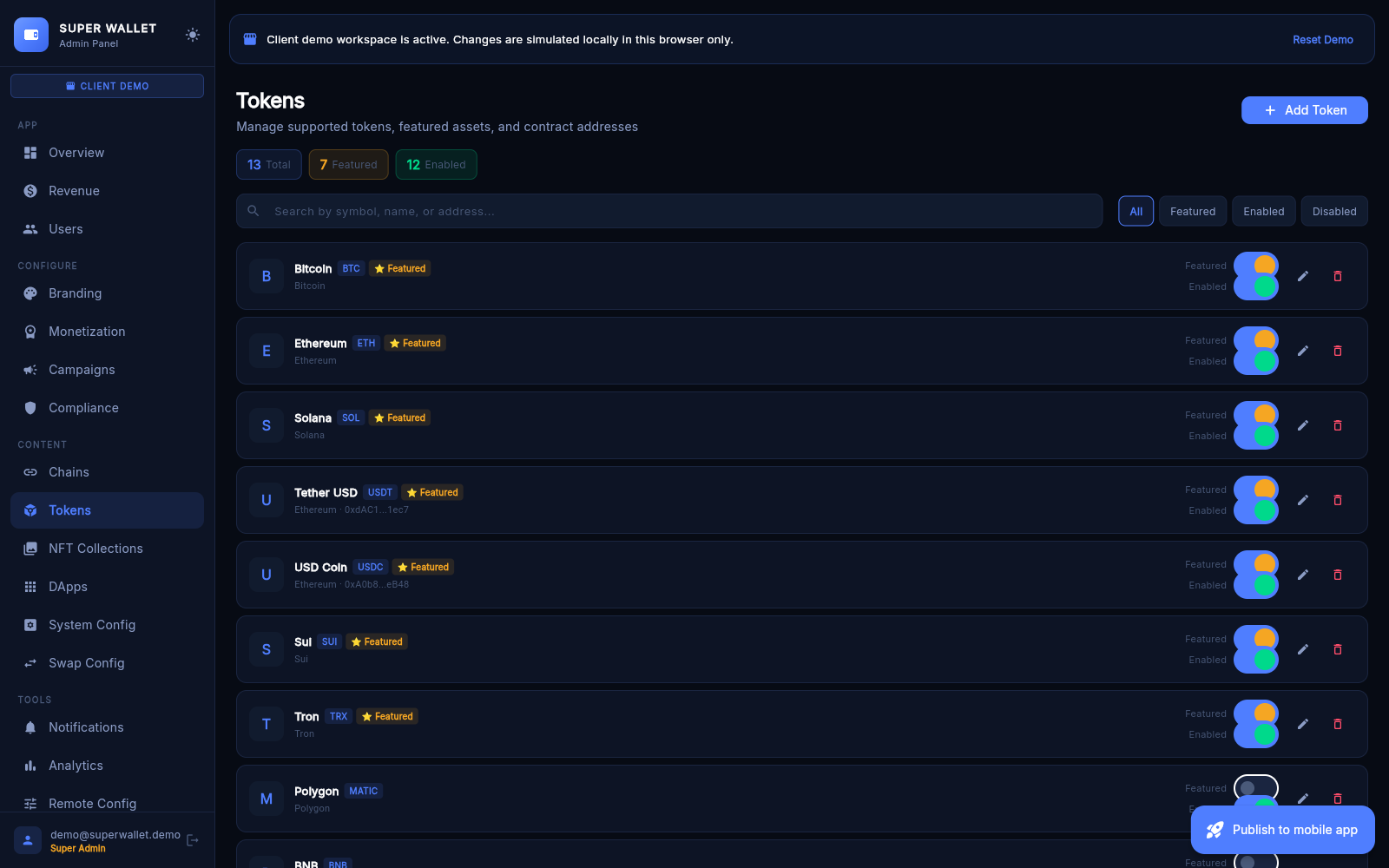
Tokens: name, symbol, chain ID, decimals (must match the contract), contract address (empty for native coins; the mint address on Solana), CoinGecko ID for prices, icon, Featured, Enabled, Default home. Copy contract addresses from the project's official site or an explorer, never from chats.
NFT Collections: featured collections for the NFT gallery — contract, chain, name, images, Featured and Verified badges; drag to reorder.
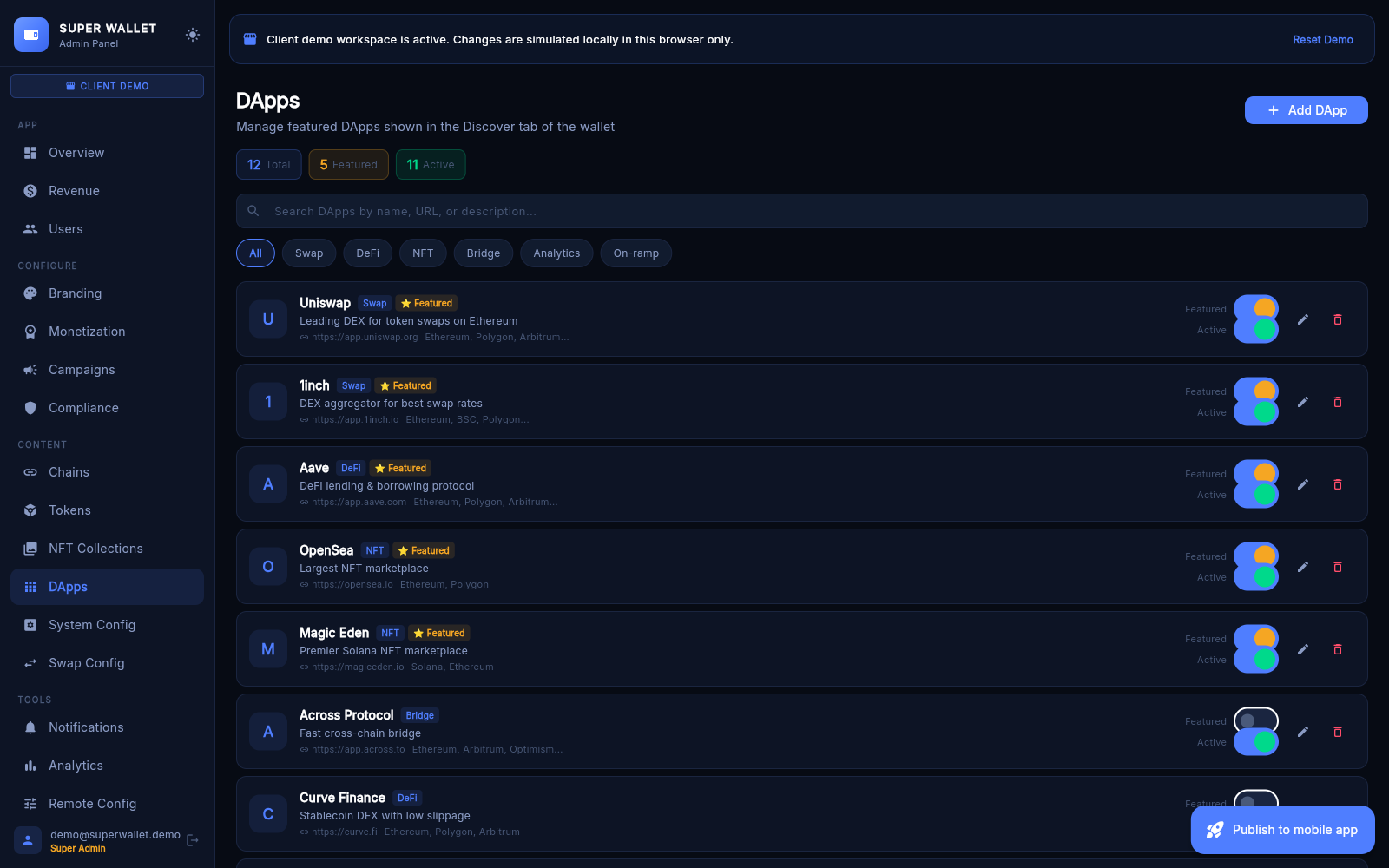
DApps: the Discover list — name, category, URL, icon, description, supported chains, featured, enabled.
09System Config
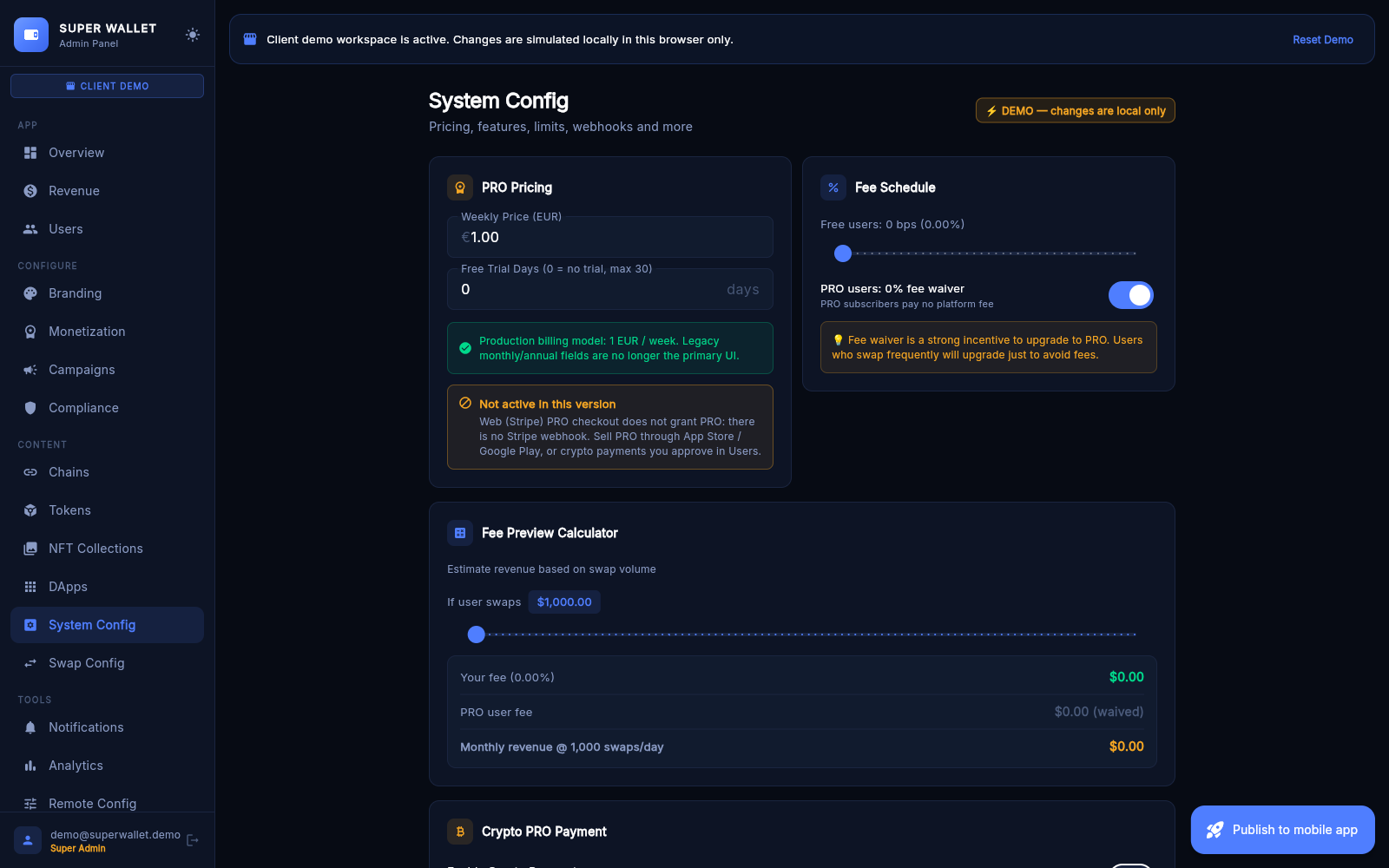
- PRO Pricing and Fee Schedule (slider 0–100 bps for fine-tuning) with a fee calculator.
- Crypto PRO Payment: let users of the web build pay PRO in ETH, USDT or USDC to your wallet — address, token, chain ID, weekly price in EUR, monthly and annual prices in EUR (0 = that plan is not sold for crypto), confirmations, validity.
- Webhooks: the "new PRO subscriber" URL (https only), called for store purchases, crypto payments and operator grants (not for free trials); the payload says which in
source(store,cryptooroperator), called by theonProMembershipCreatedfunction and signed withWEBHOOK_SECRET. It is stored inadmin_config/webhooks, which only admins can read, and is never published in/config.json. - Support & Legal: support email, terms and privacy URLs. Stored only: the wallet's Privacy and Terms links are in the code (change them). Stores need a live privacy policy.
- Remote API Keys: Etherscan, 0x, 1inch, Helius, Moralis, Alchemy, Reown — rotate a key without a new build. Blank keeps the current value. These keys are public in
/config.json; use restricted client keys only (why). - Maintenance Window: scheduled downtime (UTC) with a message.
Click Save System Config at the bottom.
10Swap Config
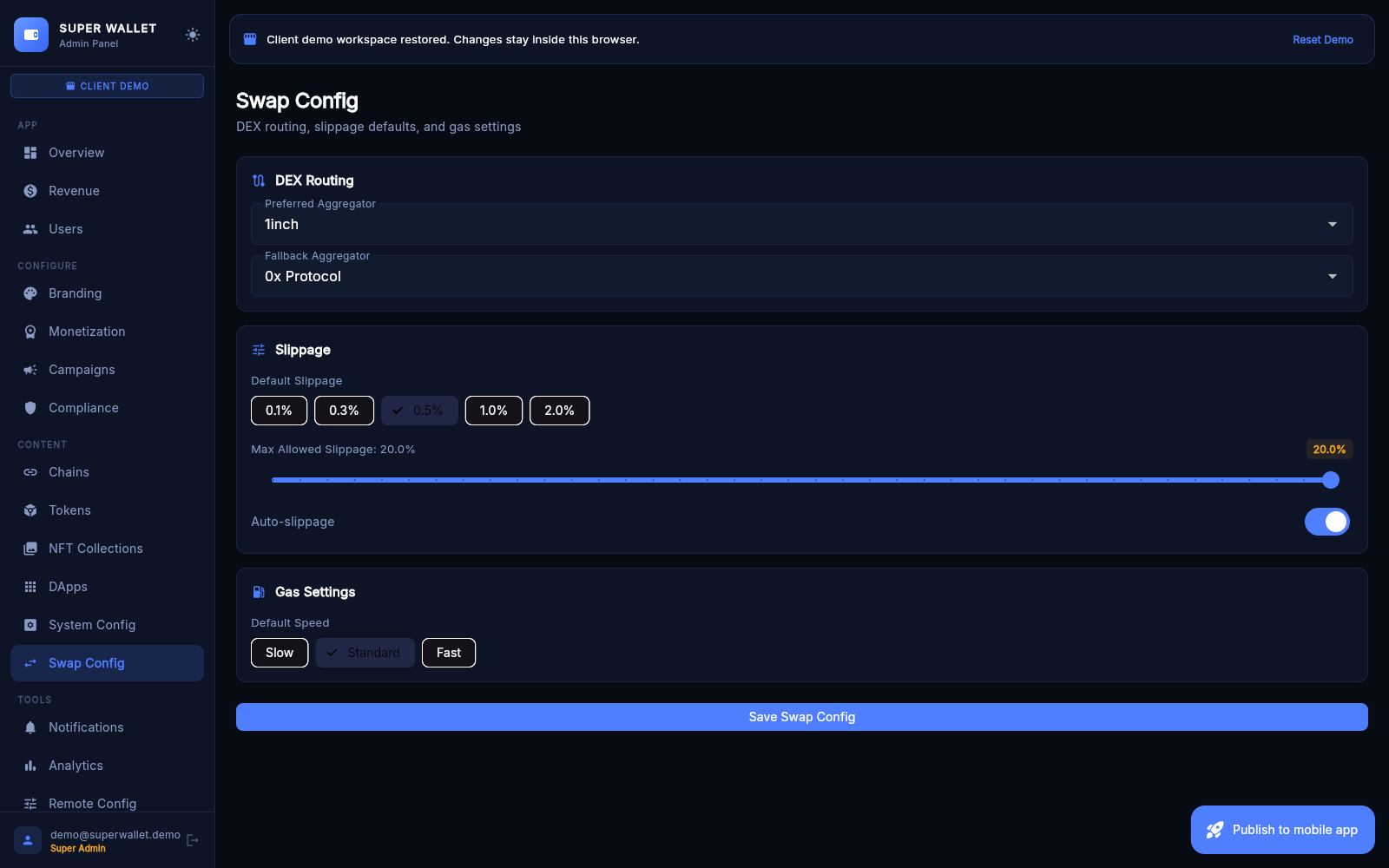
- DEX Routing: preferred and fallback aggregator. Live quotes come from 0x and 1inch on EVM chains and Jupiter on Solana.
- Slippage: default, maximum and auto-slippage.
- Gas: default speed. EIP-1559 is decided per chain (Admin → Chains), not here.
11Notifications
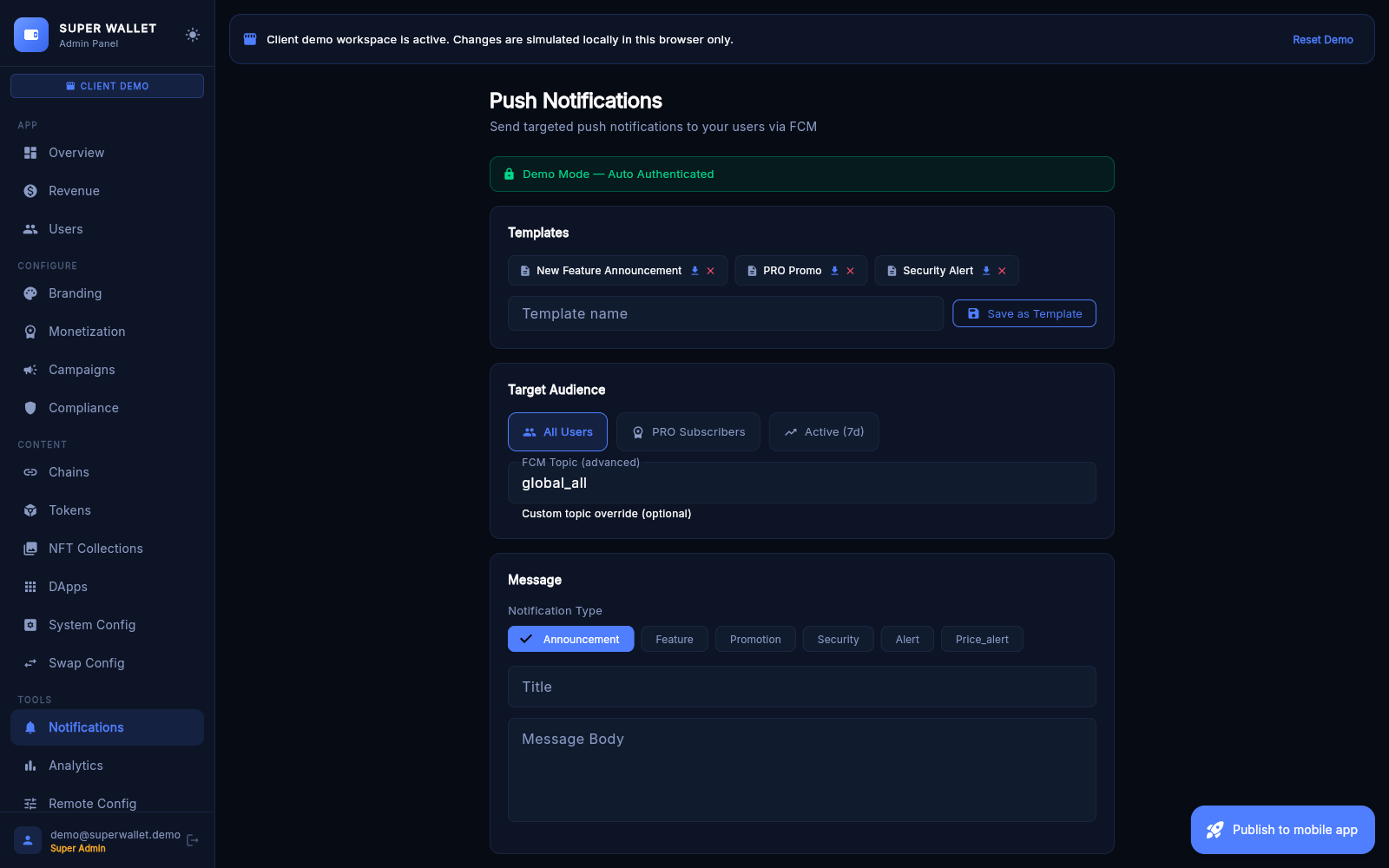
Push through Firebase Cloud Messaging. Pick the audience (All, PRO, Active 7 days or a custom topic), write the title and message, preview, send. Save frequent messages as templates. Schedule Push Campaign queues one for later; the queue is checked every 5 minutes.
12Analytics, Remote Config, Activity Log
Analytics: active users, PRO conversion, fee revenue, a funnel from install to first swap to PRO. Estimated values are marked as estimates.
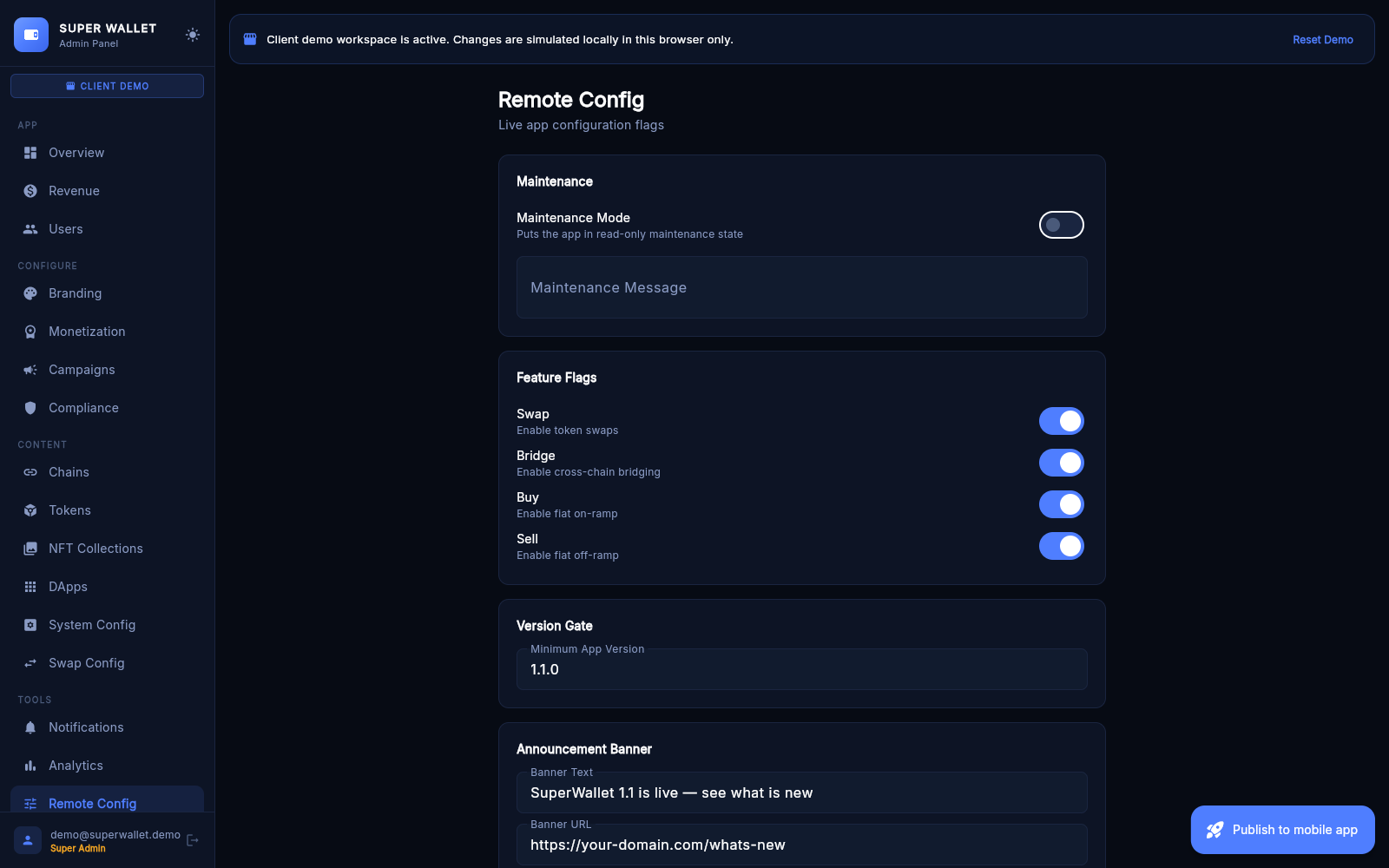
Remote Config: the quick switchboard — maintenance mode, feature switches, minimum app version, announcement banner, fee. Export to App downloads a full snapshot.
Activity Log: who changed what, with old and new values. Check it after every fee-wallet change.
13User Roles and Security
User Roles (super admins): Invite Admin with an email and a role. The new admin sets a password through Forgot password? on the sign-in screen. Change or remove roles; disable the authenticator for someone who lost their phone.
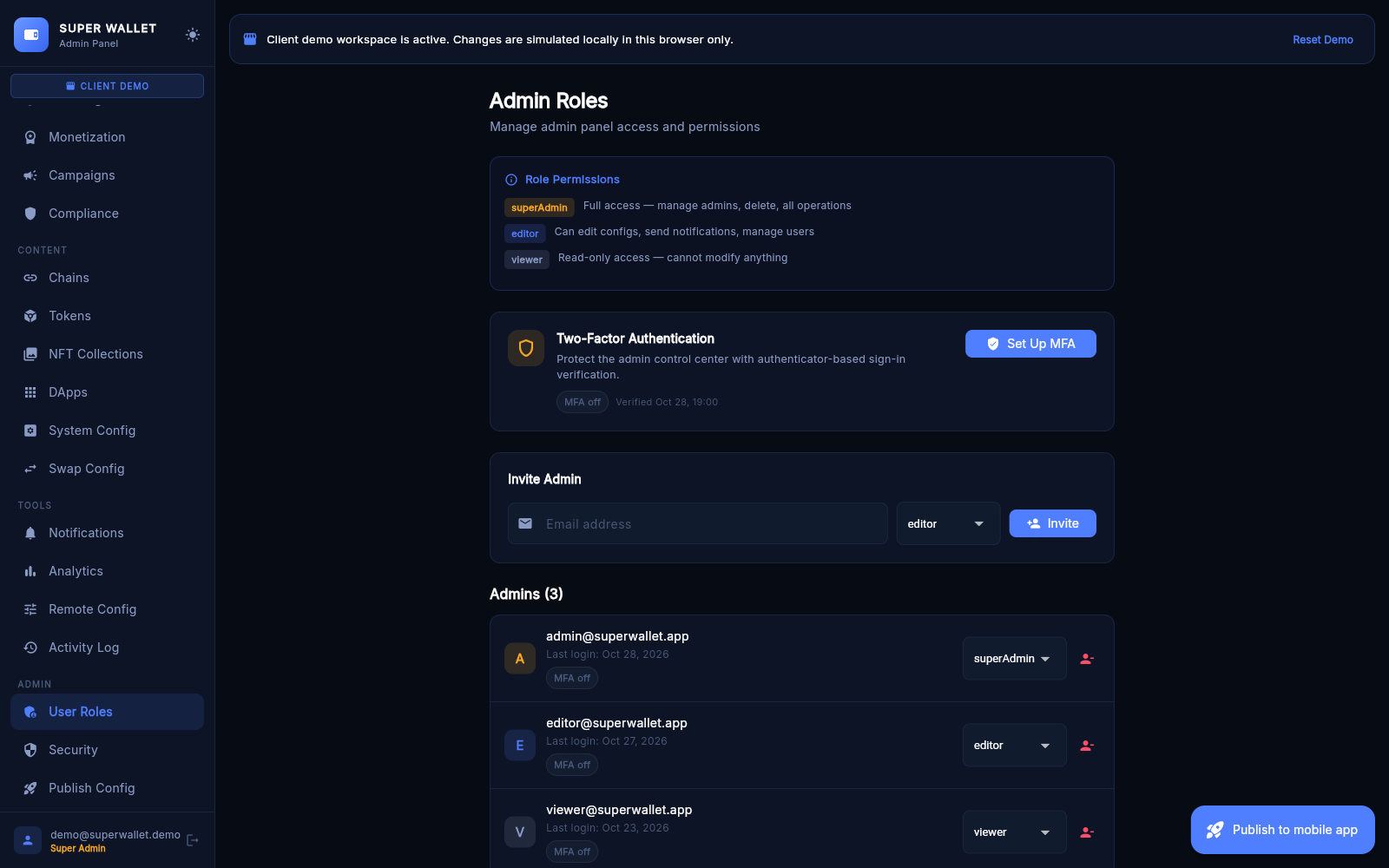
Turn on the authenticator
- Set Up MFAThe panel shows a setup key.
- Add it to your authenticator appGoogle Authenticator, 1Password, Authy… → enter a setup key manually. The account name comes from
APP_NAME. - Store the backup codes offlineEach works once if you lose your phone.
- Verify & EnableType the current 6-digit code.
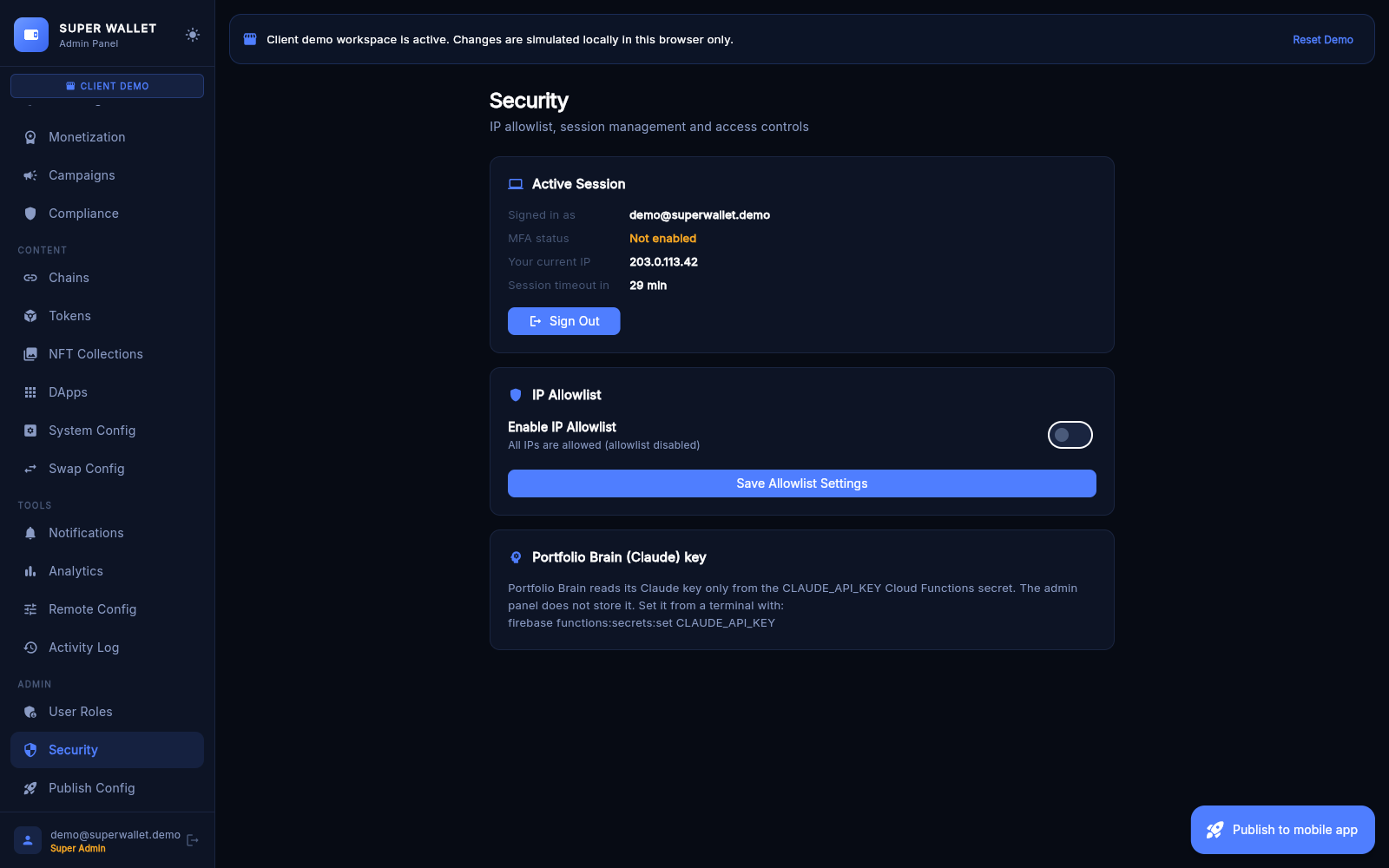
Security page: your session, IP Allowlist (add your own IP first — the page warns you before you lock yourself out) and a note on the Portfolio Brain key: it is the CLAUDE_API_KEY Cloud Functions secret, set with firebase functions:secrets:set CLAUDE_API_KEY, and is never stored in the admin.
14Publish Config
- Your config URL: the address you build the wallet with (
ADMIN_CONFIG_URL, how). - config.json: copy or download the current file.
- White-label package: a bundle with config, branding and a README, handy when you set up an app for a client.
- Save Version Snapshot and Version history with Rollback. Take a snapshot before big changes.
- Then press Publish to mobile app.